VPN for Windows in 2026 most often means a combination of a modern client and a TUN adapter. Below is a working procedure to get stable Internet and private VPN without unnecessary magic.
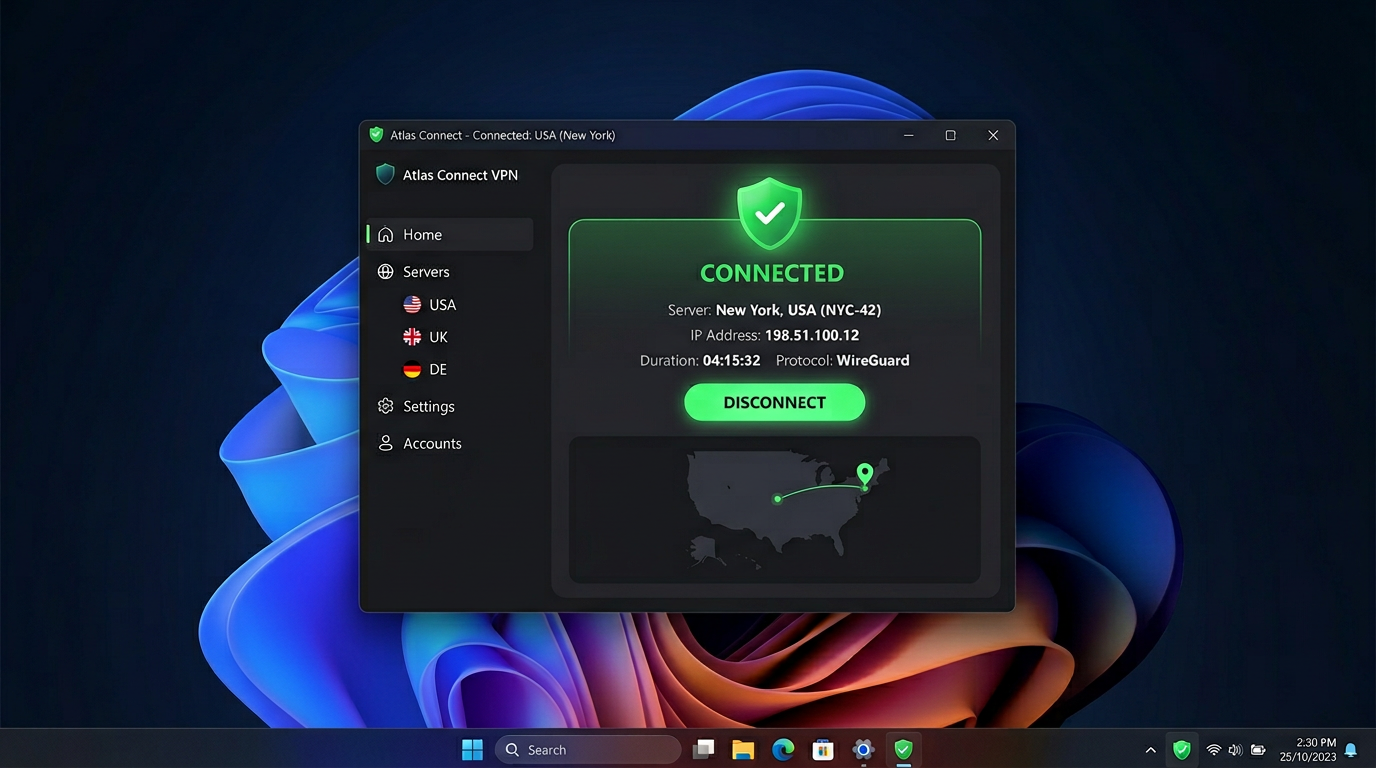
After payment, a confirmation and access to a key or subscription link usually appears in your account.
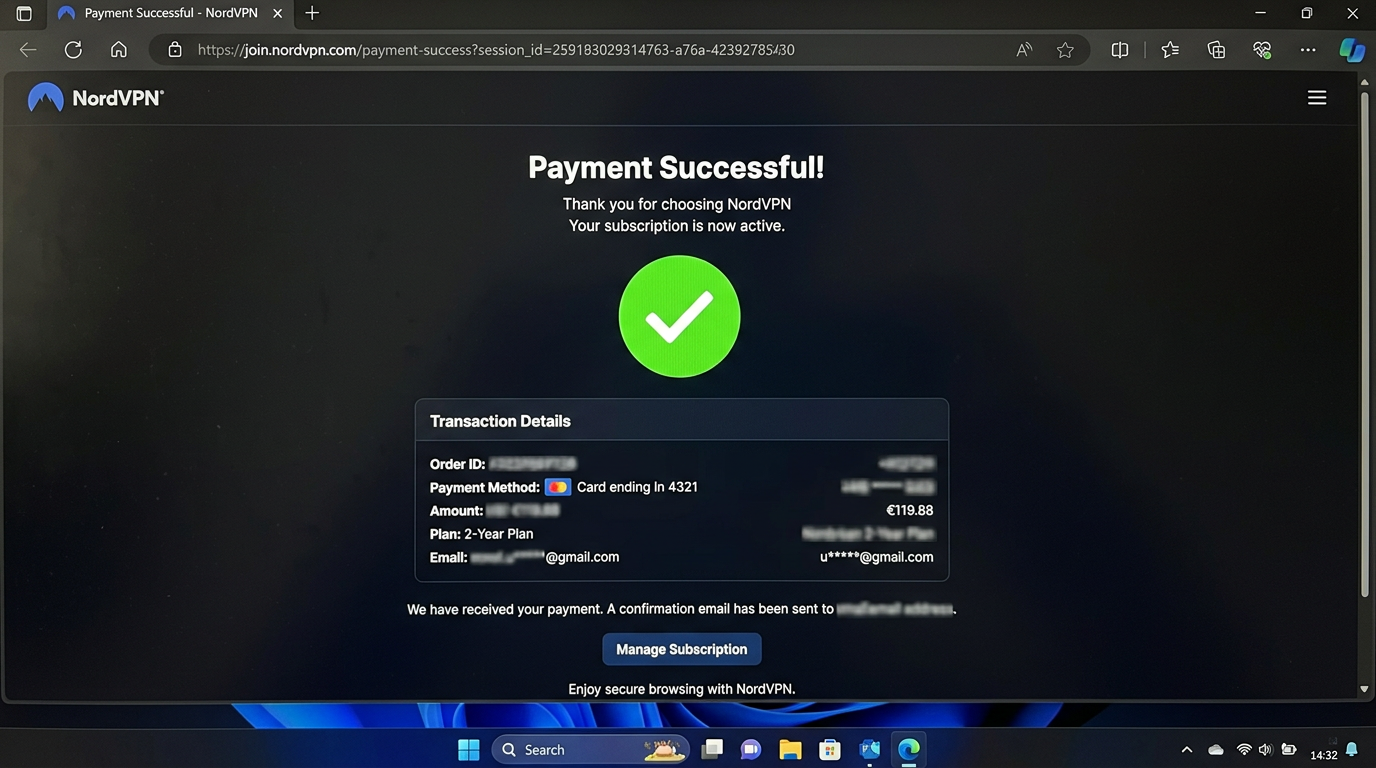
1Install the recommended client
Download the assembly from the official links that the service provides after payment. Run the installation as an administrator if the instructions require this for the TUN driver.
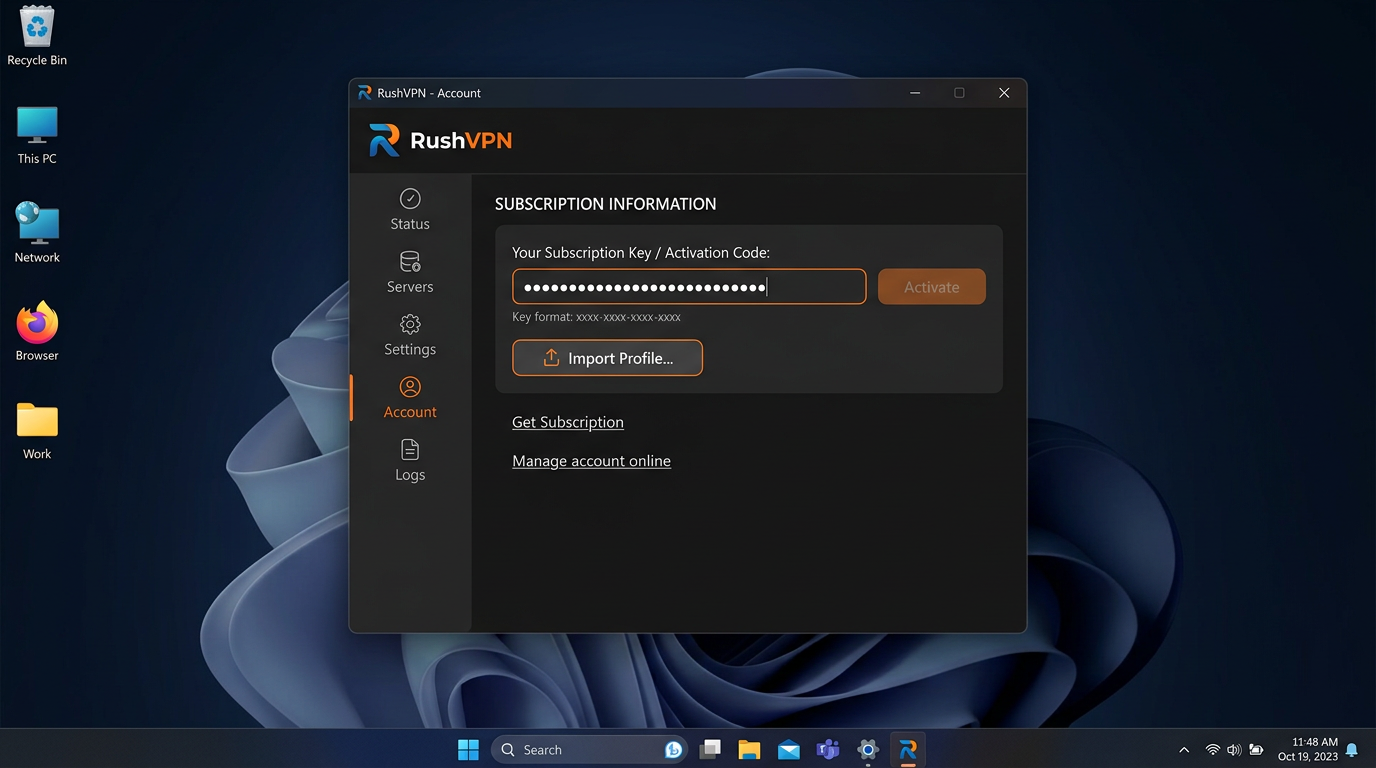
2Import the subscription
Use the subscription link from HiddifySales tariffs / personal account. Make sure Reality (and if necessary Hysteria 2) is present in your profile.
3Enable system proxy/TUN according to the client guide
On Windows 11, correct TUN usually gives more predictable routing than older modes.
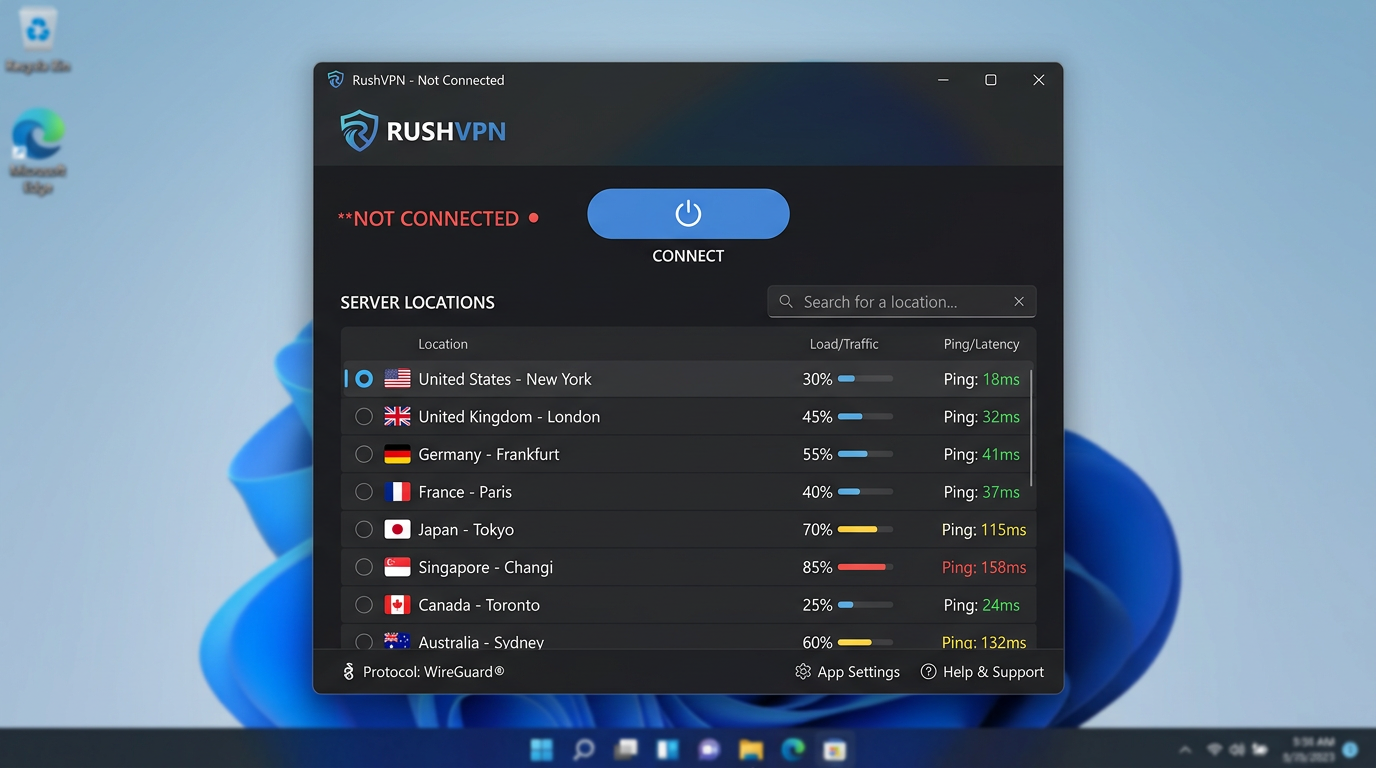
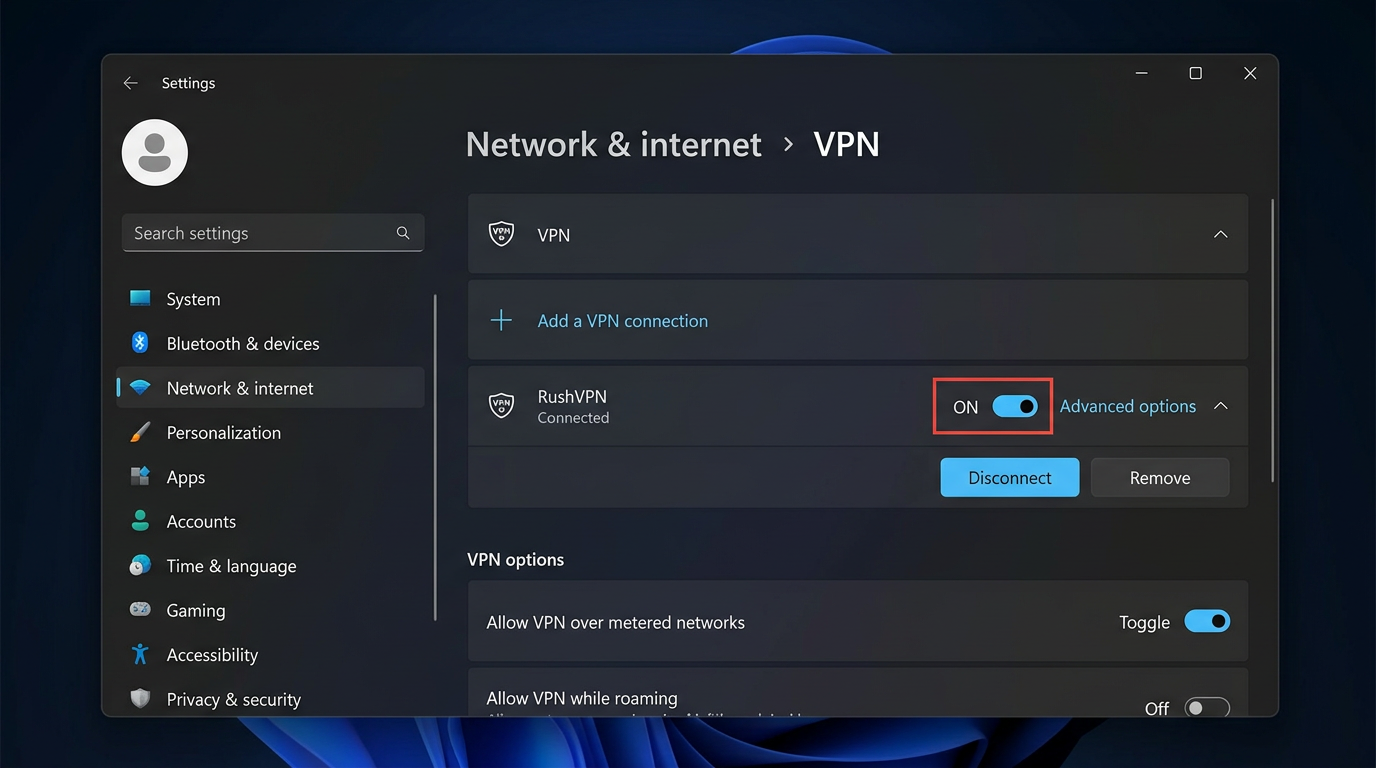
4Check
Take 3 speed and ping measurements. If the speed has dropped, take a look at why VPN is slow and how to speed it up.
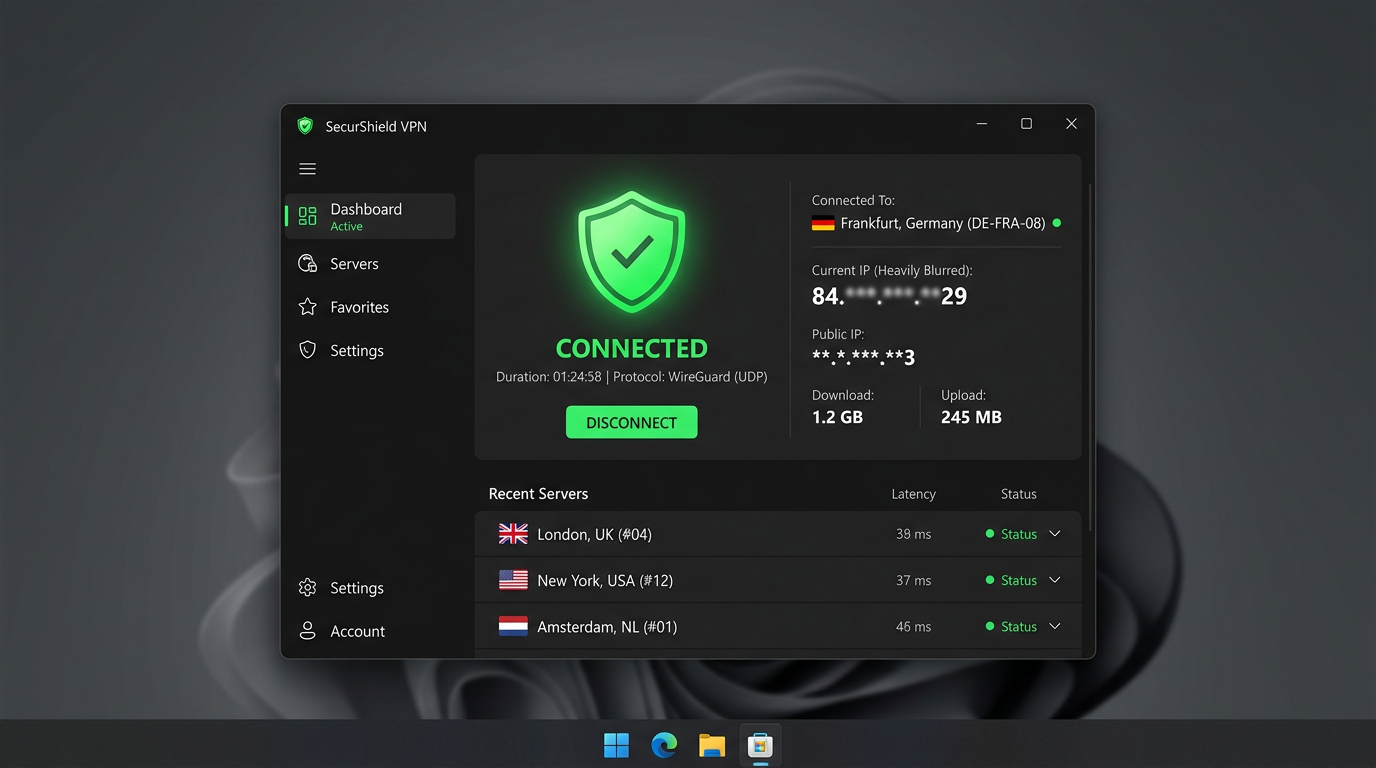
5Conflicts
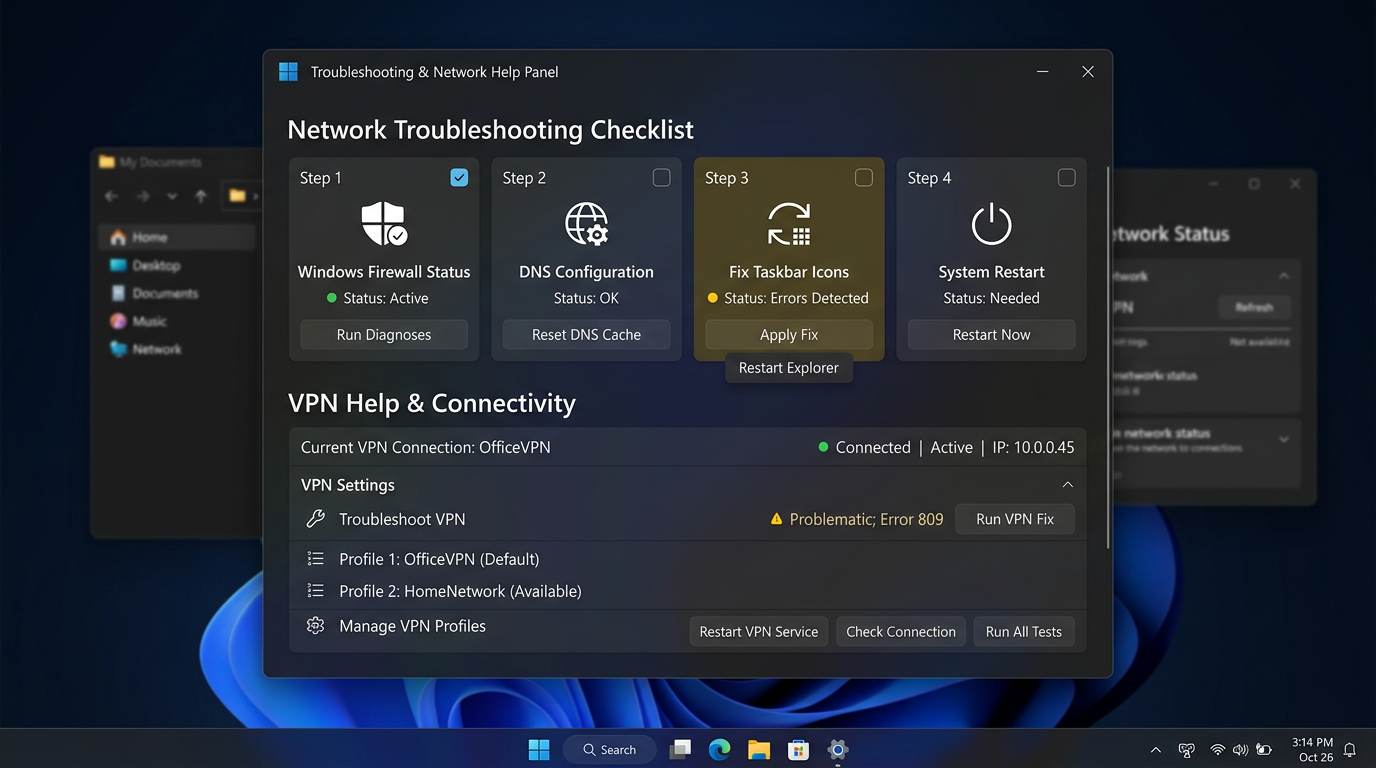
Temporarily disable third-party firewall traffic filtering or add the client to exceptions. After the test, reset the security settings in a meaningful way rather than at random.
Related materials: HiddifySales on Android with QR, VPN on TP-Link / Keenetic / Asus router, Hysteria 2 vs WireGuard vs Reality.
<!-- BLOG_TAIL -->Complete installation procedure without skipping
- Download the recommended client from the instructions after payment.
- Install the TUN driver with administrator rights.
- Import your Reality subscription or profile.
- Verify that latency, nodes, and last update time are visible in the client.
- Enable TUN or system routing mode.
- Do a ping test and one real scenario: website, call, download.
- If security software interferes, add the client to the exceptions and repeat the test.
- Lock the working profile as primary and save the backup node.
What to check if TUN does not rise
- Is there a conflict with a third-party antivirus or firewall?
- Whether the route is being interrupted by Hyper-V, WSL2 or another virtual adapter.
- Has the client itself been updated to the latest build?
Such a checklist is more useful than a long canvas of general advice: on Windows, it is the sequence of steps that most often breaks down.
[Image: 2026 VPN checklist infographic—privacy, speed, protocol transparency, support, price—dark neutral icons.]
[Image: tunnel diagram device → encrypted hop → server, data-protection focus.]
[Image: modern VPN client UI mock—ping row and profile picker.]
[Image: flat chart latency vs stability for blog.]
[Image: phone showing QR next to laptop—fast onboarding.]
[Image: diagram HiddifySales on Windows 11—HiddifySales minimalist corporate palette.]
[Image: 24/7 support block—chat icon.]
[Image: Reality & Hysteria 2 pictograms in a row.]
[Image: Android, Windows, iOS, router collage—consistent colors.]
[Image: mid-article CTA banner “get a key in minutes”.]
[Image: DNS/MTU settings in generic client—no PII.]
[Image: abstract waves “speed & stability” background.]
Conclusion
Want a fast, private VPN today? Open HiddifySales pricing and you can get a working key moments after checkout. If a short trial appears in the current plan list, you can validate speed and stability on your devices calmly.
Read next: VPN protocols in 2026: Reality & Hysteria 2, VPN pricing in 2026, HiddifySales on Android with QR.