On iPhone and iPad, HiddifySales connects via subscription URL or QR from your account. We recommend Hiddify Next from the App Store; Happ is an official alternative in the same store (handy subscriptions, Reality, Hysteria 2). Below are both setup paths and stability checks for vpn for ios.
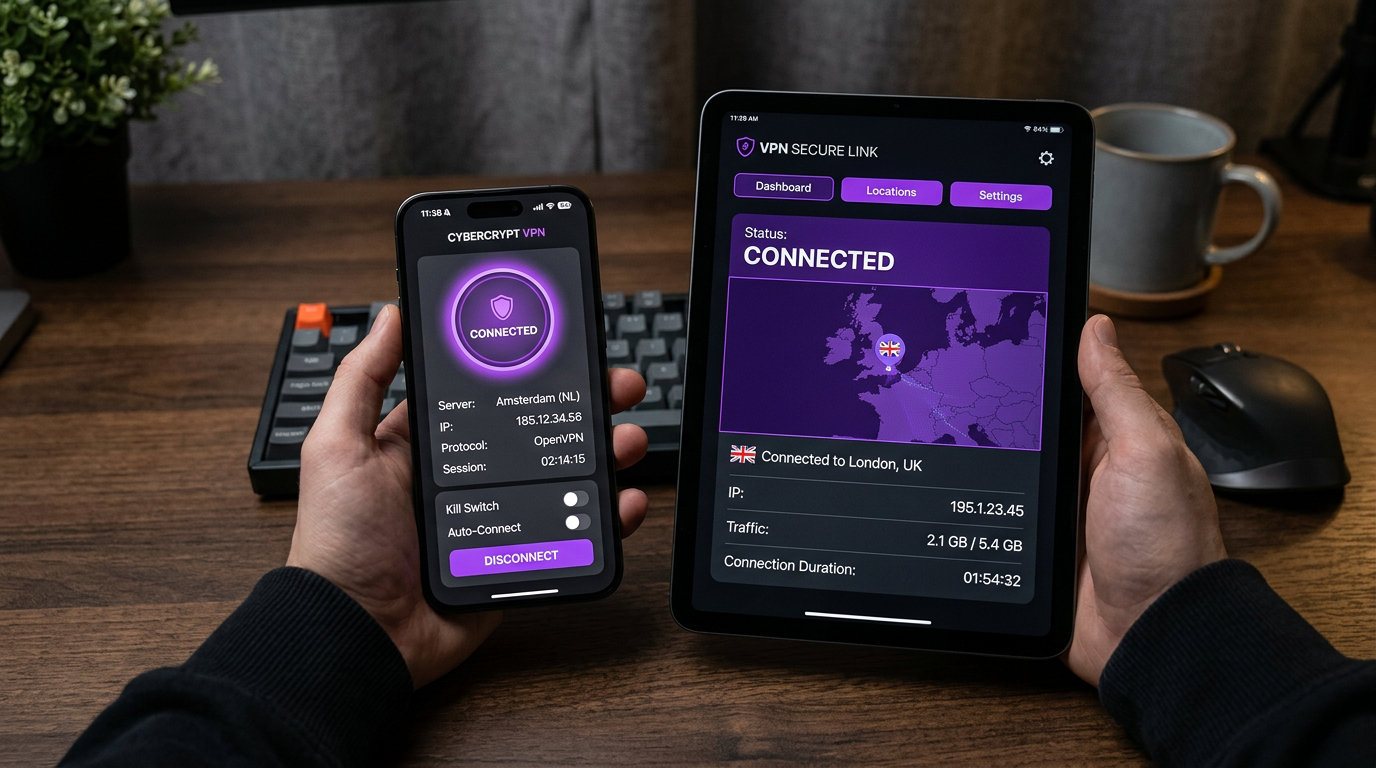
Hiddify Next (recommended)
-
Get a subscription and key from HiddifySales tariffs.
-
Install Hiddify Next from the App Store.
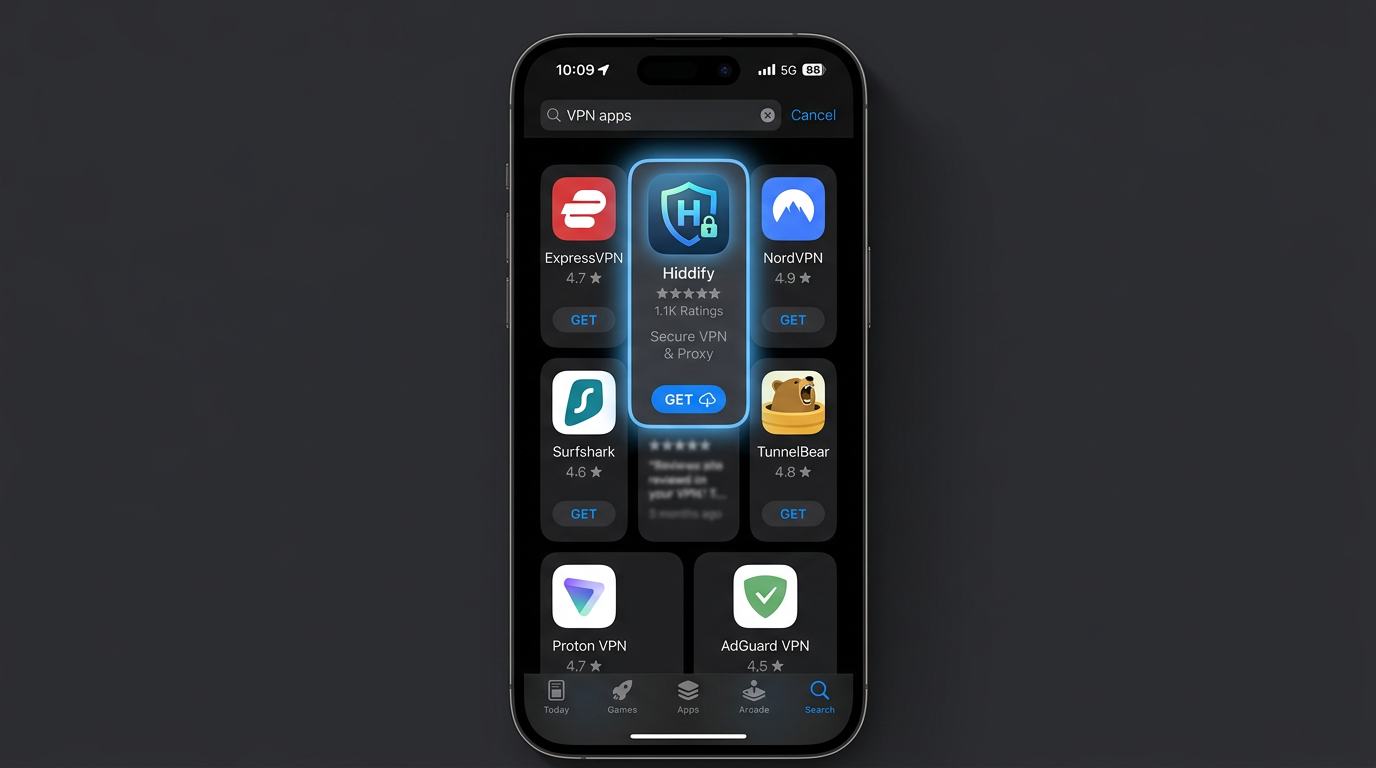
- Import the subscription (link/QR).
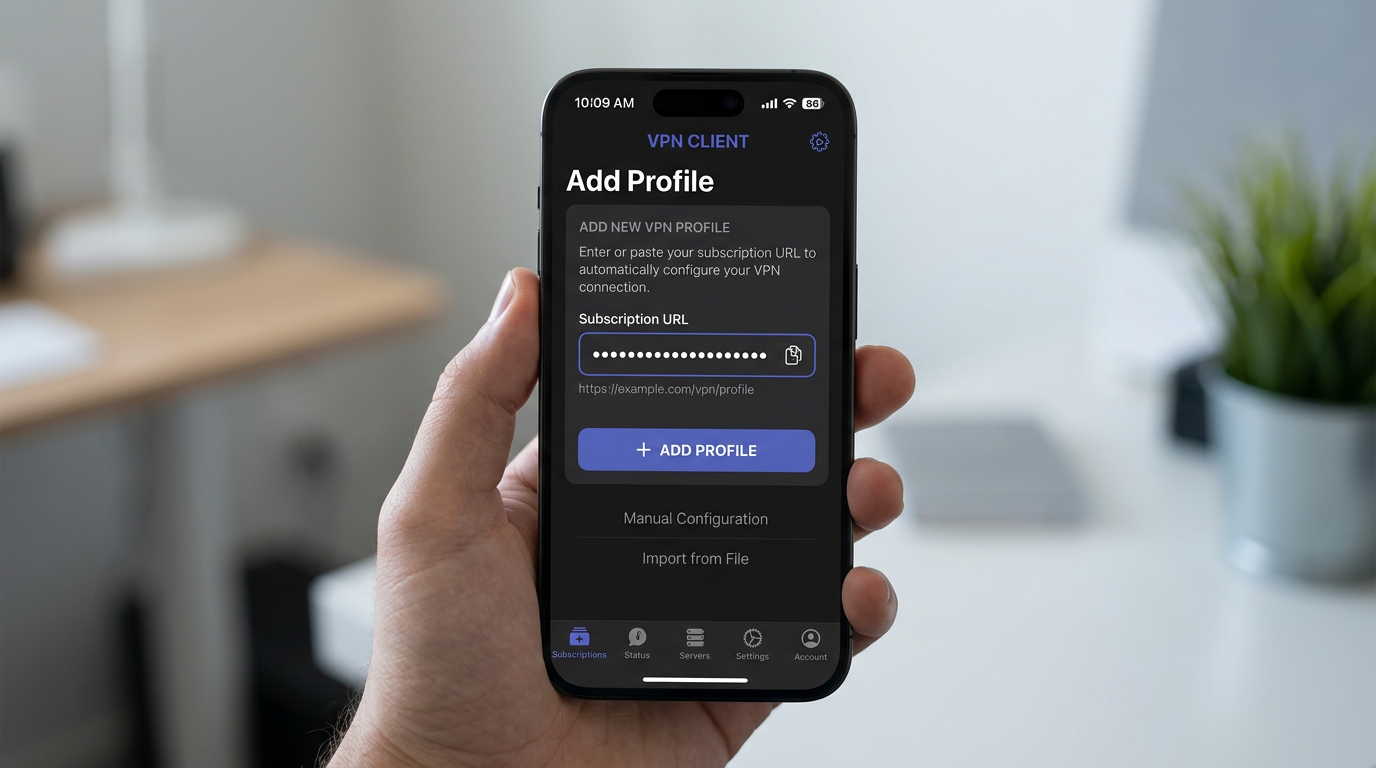
- Allow VPN profile in system settings.
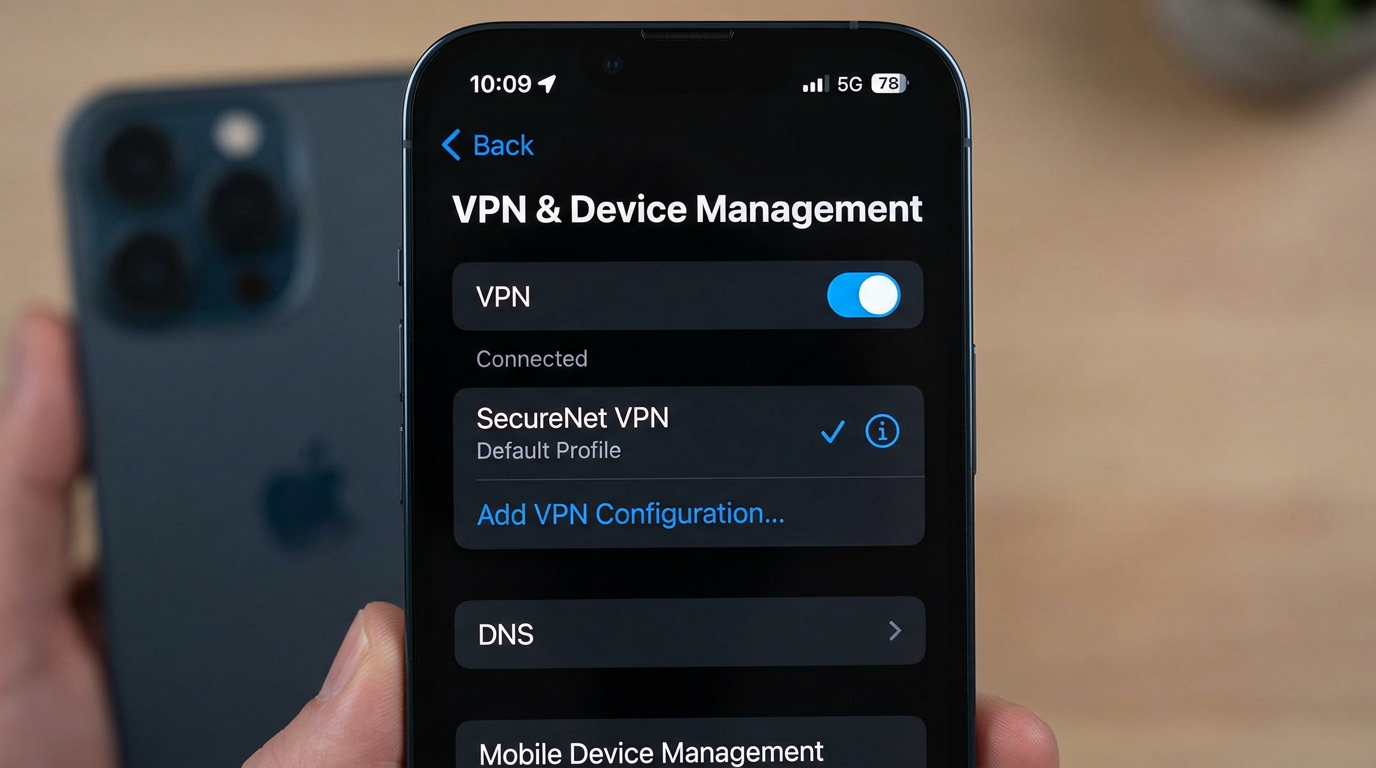
-
Disable aggressive power saving for the client if the tunnel goes down.
-
Select the Reality/Hysteria 2 profile according to the recommendation of VPN for Russia and protocols 2026.
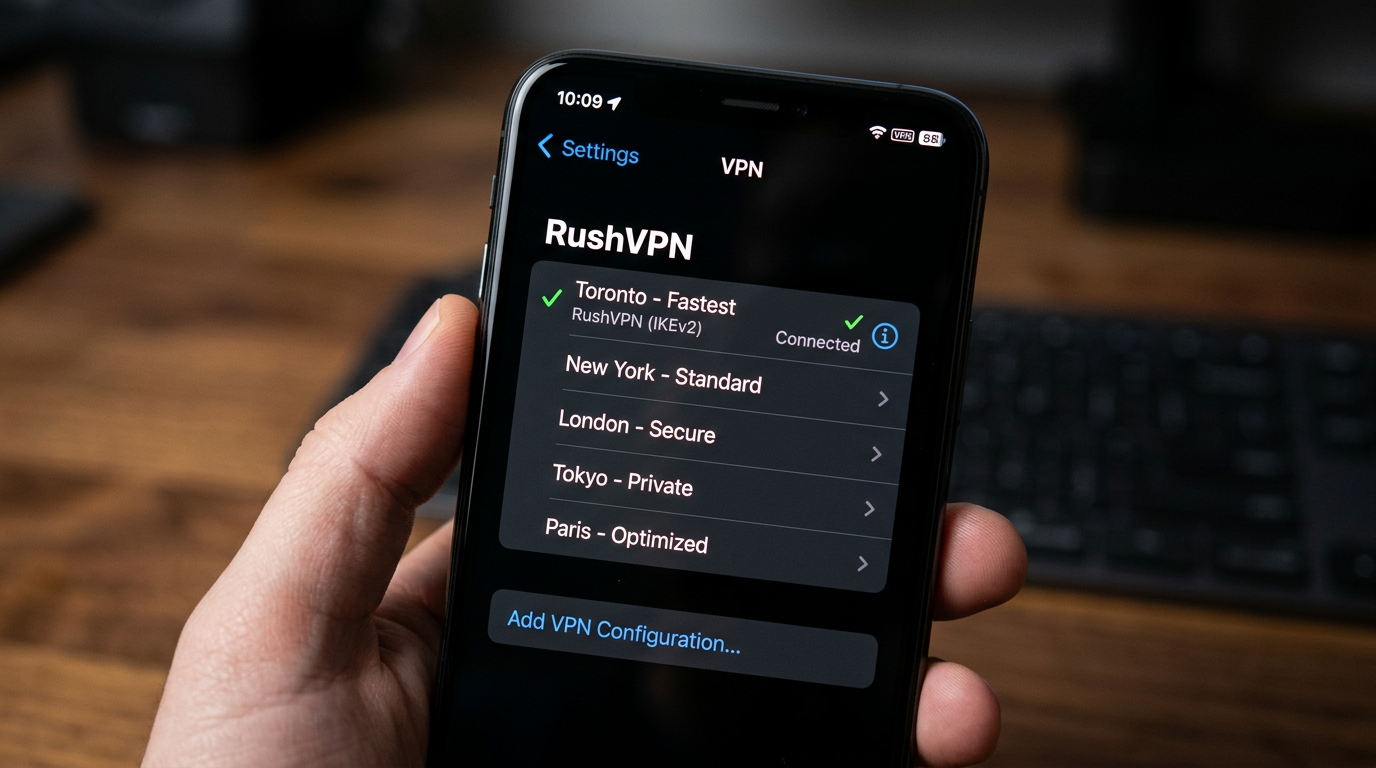
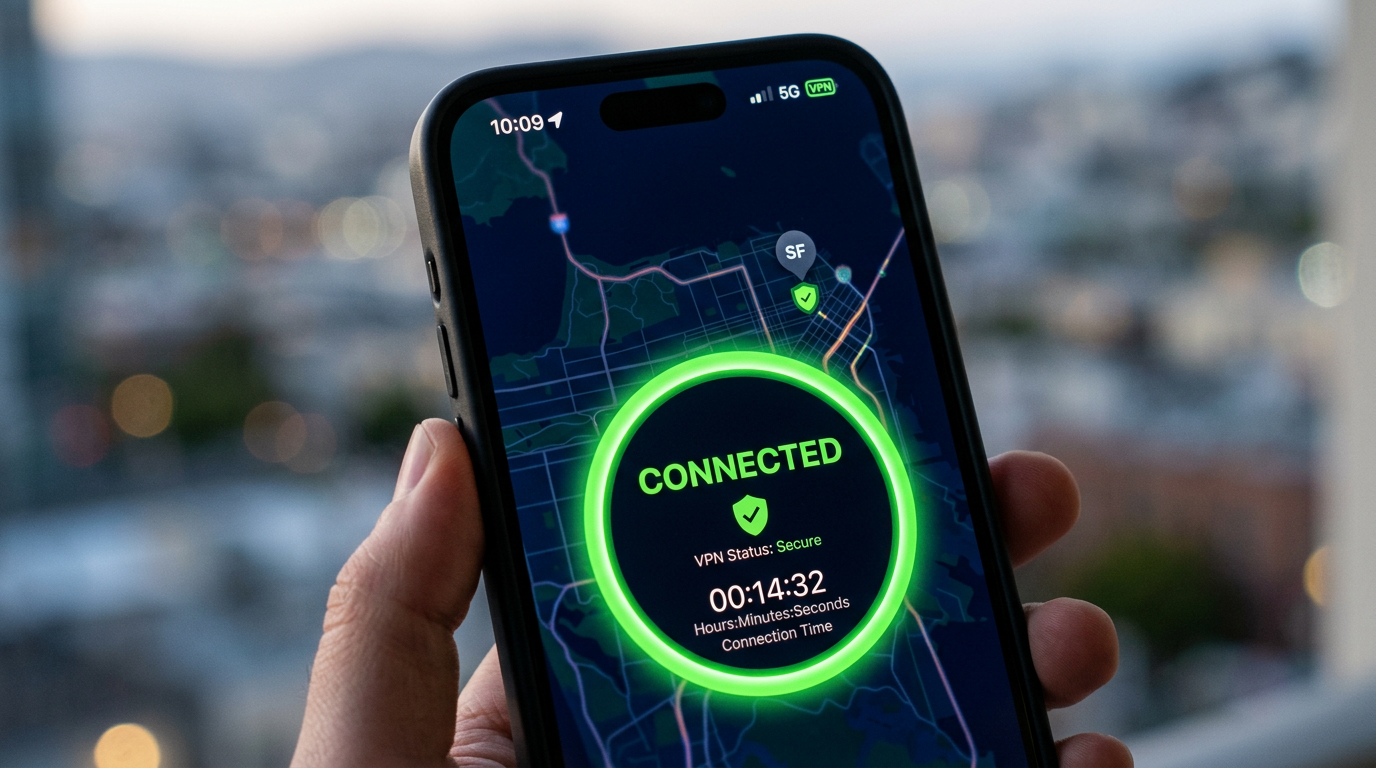
Once connected, check the VPN indicator in the status bar and stability after locking the screen.
Happ — alternative for iPhone and iPad
Happ — Proxy Utility is on the App Store. Happ does not sell VPN servers—you add your HiddifySales subscription, same as with Hiddify.
- Install Happ from the App Store (official listing name).
- Copy the subscription URL from your HiddifySales account or open the QR code.
- In Happ tap "+" and add a subscription by URL or QR scanner.
- Allow the VPN profile in iOS, refresh nodes, and connect to your location.
- On the first local network prompt, tap Allow—otherwise imports from other devices (e.g. Apple TV) may fail. See Happ FAQ.
Happ supports VLESS (Reality), VMess, Trojan, Shadowsocks, Socks, and Hysteria 2—compatible with HiddifySales profiles. Docs: happ.su.
Note: Use only the subscription URL issued by HiddifySales after payment.
Quick guide on the homepage: Guides → iPhone and iPad.
In parallel on other devices: HiddifySales on Android with QR, HiddifySales on Windows 11.
<!-- BLOG_TAIL -->Installation sequence on iPhone and iPad
- Check that you are using the current stable build of the client from the service instructions.
- Import your profile or subscription via QR/link.
- Confirm system permission to create a VPN configuration.
- Immediately after the first connection, check whether the tunnel turns off after the screen is locked.
- Keep a spare profile in case the main node degrades.
What breaks work most often
- Old client build or incorrect sideload.
- Importing a subscription without subsequently updating nodes.
- Aggressive background restrictions and manual disabling of the VPN profile in system settings.
On iOS, it is important not only to “connect”, but also whether the client behaves stably after sleep and changing the network.
[Image: 2026 VPN checklist infographic—privacy, speed, protocol transparency, support, price—dark neutral icons.]
[Image: tunnel diagram device → encrypted hop → server, data-protection focus.]
[Image: modern VPN client UI mock—ping row and profile picker.]
[Image: flat chart latency vs stability for blog.]
[Image: phone showing QR next to laptop—fast onboarding.]
[Image: diagram HiddifySales on iPhone and iPad—HiddifySales minimalist corporate palette.]
[Image: 24/7 support block—chat icon.]
[Image: Reality & Hysteria 2 pictograms in a row.]
[Image: Android, Windows, iOS, router collage—consistent colors.]
[Image: mid-article CTA banner “get a key in minutes”.]
[Image: DNS/MTU settings in generic client—no PII.]
[Image: abstract waves “speed & stability” background.]
Conclusion
Want a fast, private VPN today? Open HiddifySales pricing and you can get a working key moments after checkout. If a short trial appears in the current plan list, you can validate speed and stability on your devices calmly.
Read next: VPN protocols in 2026: Reality & Hysteria 2, VPN pricing in 2026, HiddifySales on Android with QR.